Record your
screen
from
your

Mac

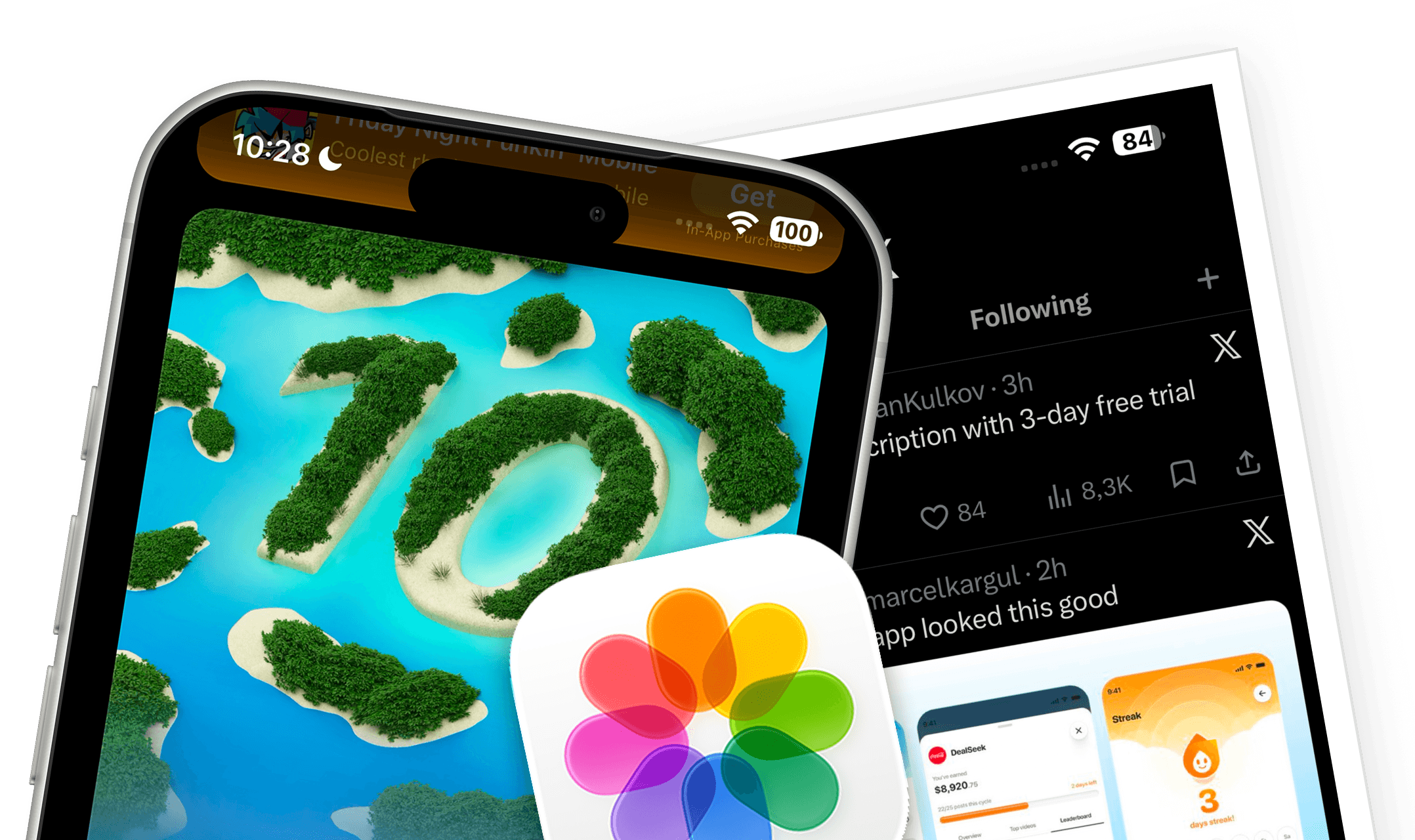
You just wanted to record your screen.
On iPhone, the red dot appears
on the whole video.
So you switch to QuickTime.

The dimensions are wrong!
Now you’re searching

for
the right video size:
Which one was it again?
QuickTime can't crop or resize the recording.


One demo. Too many steps.
How it works
FrameOS
replaces
the whole workflow
Record your app from a real device.
Connect your device and record it directly from your Mac — without the red recording indicator appearing in the demo.




Choose where your demo is going.
Start with presets for App Store previews, YouTube, social, landing pages or your own custom size.
Make it ready to share.
Add backgrounds, device frames, spacing and layouts without opening another editor.

Who it's for
Built for people
who
ship
products


Additional Features
More than a
recorder

Store-ready assets
Make videos and screenshots for the App Store and Google Play from the same workflow.
60 fps
886 x 1920
30 seconds


Trim & Edit
Clean up the take. Cut mistakes, dead air and unwanted sections without opening another video editor.


Camera & Mic
Explain your app as you use it. Record your camera, microphone and device audio alongside the app.
Export presets
Resize it for anywhere. Turn the same demo into versions for your website, YouTube, social or a custom canvas size.

Screenshots
Grab the perfect frame. Capture crisp screenshots from your device for store listings, landing pages, social and more.
One workflow for every device
Record iPhone, iPad and Android from the same Mac app — no separate recording setup.


Testimonials
Helping teams tell
better
product
stories


Pricing
One purchase.
Endless
demos.

Need FrameOS for your team?
Contact us for enterprise pricing and licensing.

Founder note
A note from the
founder



FAQs
Questions &
Answers
Is this just QuickTime with a new wrapper?
No. FrameOS is built around the full demo workflow: connected-device capture, snapshots, App Store canvases, framing controls, and local export.
Do I need to pay again next year?
No. FrameOS is a one-time purchase. There is no subscription, no hidden tier, and no account required.
Will my recordings be uploaded or analysed?
No. Capture, editing, resizing, and export happen locally on your Mac. FrameOS does not upload your recordings, snapshots, or exported files.
Is it complicated to use?
If you can plug in a device and click Record, you can use FrameOS. The controls stay focused on app demos: size, fit, speed, frame, background, and export.
Can I export screenshots too?
Yes. Capture snapshots from a session, style them with the same output size, frame, and background controls, then save one image or a batch.
Can I reuse the same recording outside the App Store?
Yes. Use preset or custom canvases for App Store listings, website demos, social clips, docs, and launch updates.
Couldn’t find an answer to your question?
Send us a quick message, and we’ll help you out