A shared goal, with different starting points
If you want to make a polished iPhone demo on your Mac, FrameOS and Screen Studio both give you a path from a connected phone to an edited video. Both can put a device frame around the recording, bring a detail closer and export a file to share. The useful question is which workflow fits the things you actually make.
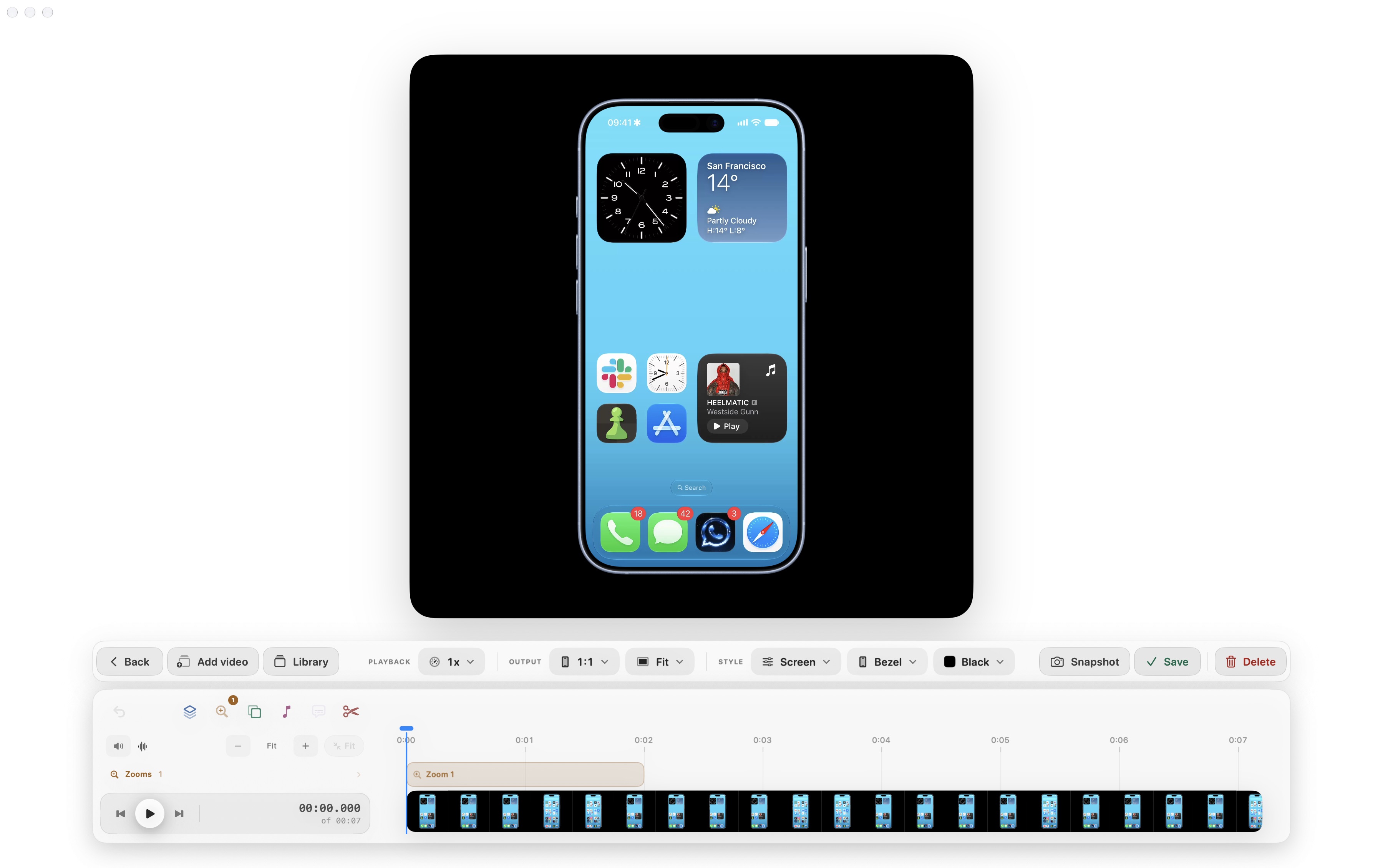
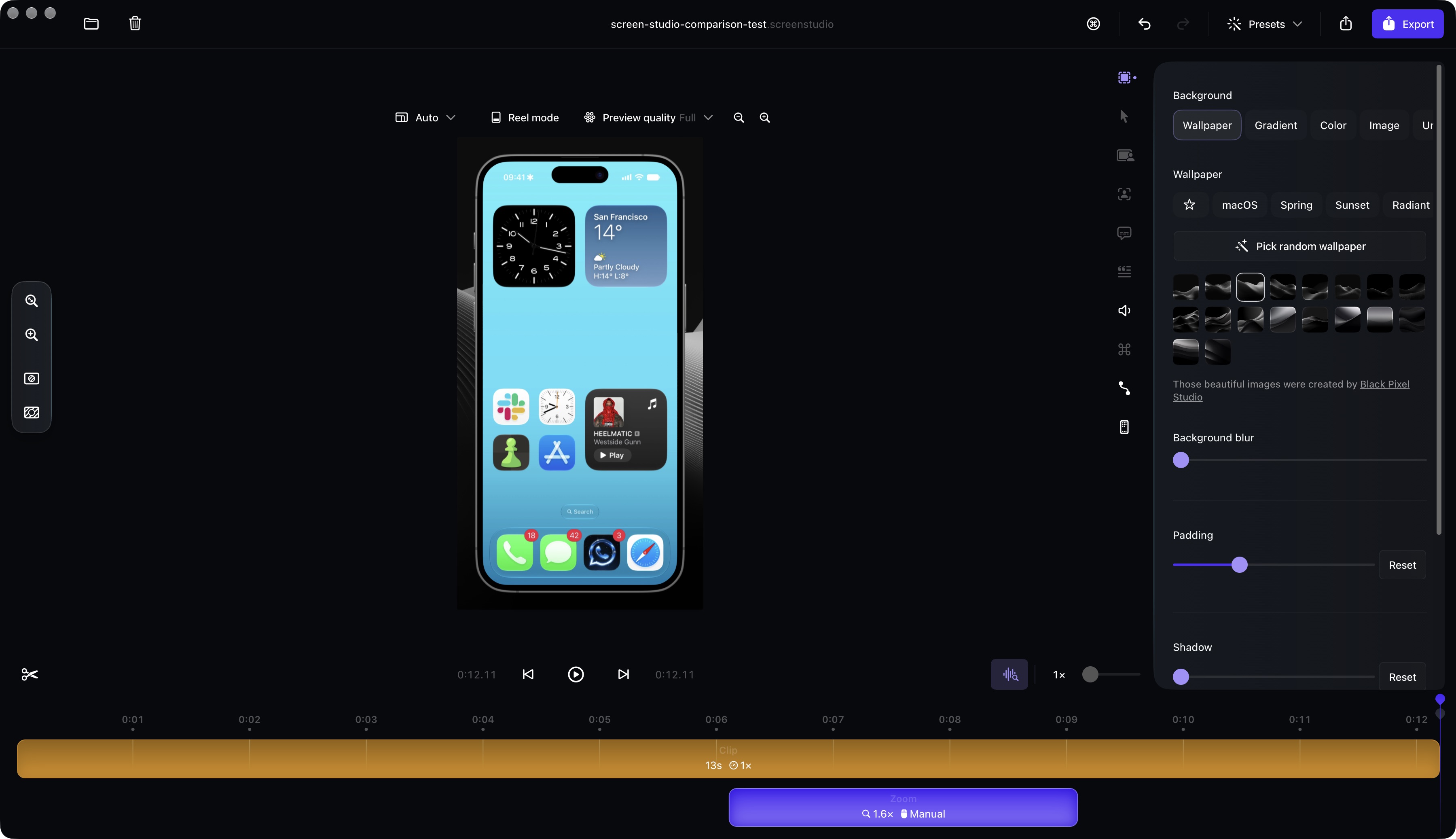
We make FrameOS, so this comparison comes from the FrameOS team. We used both apps with an iPhone connected and checked their published documentation. Screen Studio has a broader desktop-and-phone recording workflow. FrameOS concentrates on mobile screens, their presentation and the videos or images you want to make from them.
How we compared them
On 20 November 2026, we tested FrameOS 1.22 (83) and Screen Studio 4.1.0-5005. We made a short iPhone recording in FrameOS. In Screen Studio, we used an existing direct-device recording, saved a separate copy, added a manual zoom and exported it. We also added a manual zoom and exported the FrameOS recording.
These were hands-on workflow checks, rather than matched tests of image quality or export speed. The recordings had different lengths. We did not test Android capture, captions, audio quality or transparent export; those details below come from the vendors’ documentation.
Start with what you need to record
Screen Studio records a Mac display, window or selected area, as well as a connected iPhone or iPad. That makes it a natural fit when your work moves between a desktop product, a presentation and a mobile app. Its phone recording is a real part of the product: connect over USB, record the device and use the editor to finish the result.
FrameOS does not capture the Mac desktop. Its recording sources centre on connected iPhone, iPad and Android screens, an iOS Simulator, and camera video. If your next project is an Android walkthrough followed by iPhone launch assets, that focus is relevant. If you need to demonstrate a Mac window, Screen Studio covers a job FrameOS does not.
Zooms need a different approach on a phone
Screen Studio is known for automatic zooms that follow desktop interactions. Its iPhone and iPad guide explains an important distinction: direct device recording does not provide finger-tap positions, so those recordings use manual zooms. A phone demo should not be judged by expecting the same automatic behaviour as a desktop recording.
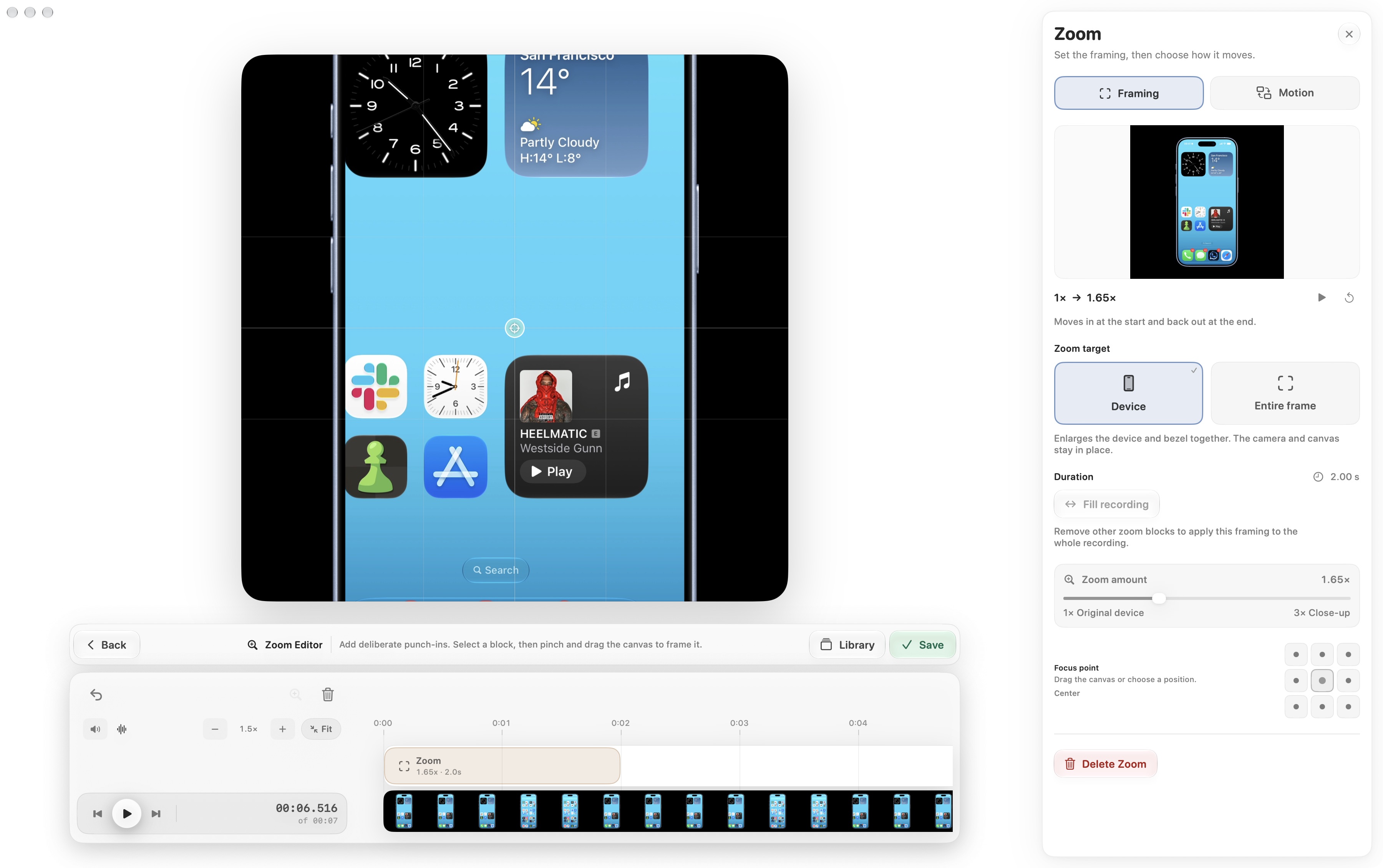
We added a manual zoom in both editors. In FrameOS, the zoom controls let us choose the device or the entire frame as the target; we tried a device zoom and inspected its strength, duration and transition controls. In Screen Studio, we placed a manual zoom on the recording and reviewed its Classic and Glass Loupe options. Both give you a way to direct attention deliberately. Try the treatment that makes the control you are explaining easiest to follow.
Presentation is part of the workflow in both apps
Both editors give a raw phone recording more presentation options. In our hands-on check, we looked at device frames and backgrounds in Screen Studio, and device zooms, motion transitions and easing in FrameOS. Those controls are useful for different moments: framing establishes the scene, a zoom explains a detail, and a transition changes how something enters or leaves.
FrameOS also lets you build a scene around the device, camera and canvas before recording. Screen Studio combines recording with editing tools for desktop and mobile demonstrations. Neither needs every effect switched on. A readable screen, a calm background and one well-placed close-up can explain more than a busy sequence.
Screenshots and store assets are a useful distinction
FrameOS extends the workflow into still images. Its published feature set includes capturing or importing screenshots, arranging them, adding frames and exporting PNG sets. It also provides App Store and Google Play sizing presets. We opened the App Store video sizing controls during this comparison; we did not submit the resulting files to either store.
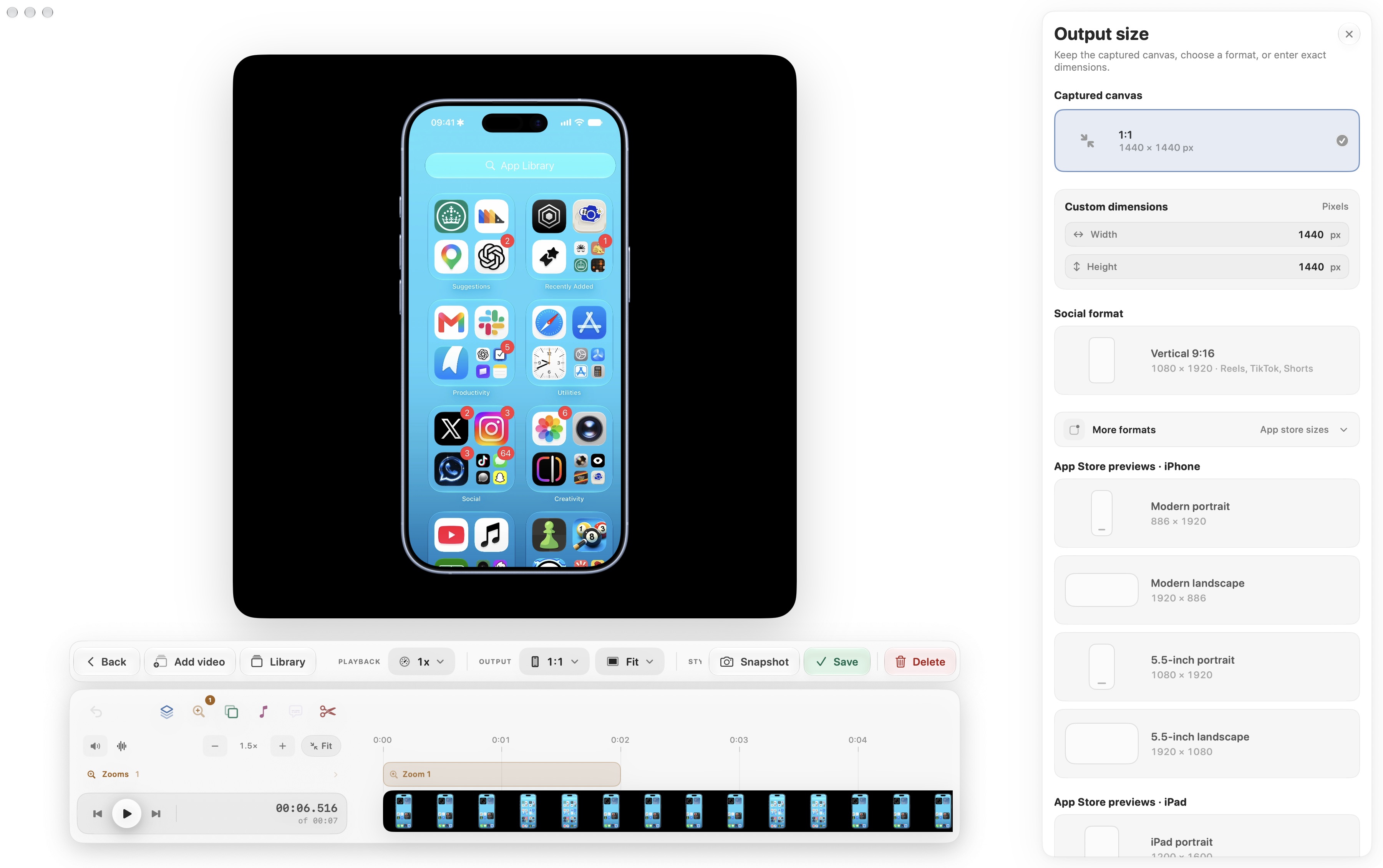
Screen Studio can also produce a still image: its guide describes copying the current frame from a recording as an image. That is handy when you want an image from a moment you have already captured. The distinction is the surrounding workflow. FrameOS brings screenshot preparation alongside phone-video work; Screen Studio’s current-frame action makes a still available from the video editor.
If your launch needs a preview video and a coordinated set of screenshots, try that complete task before choosing. Check the store’s current requirements for your device and submission, rather than assuming a preset removes the need to review the finished assets.
Local exports, with optional cloud sharing in Screen Studio
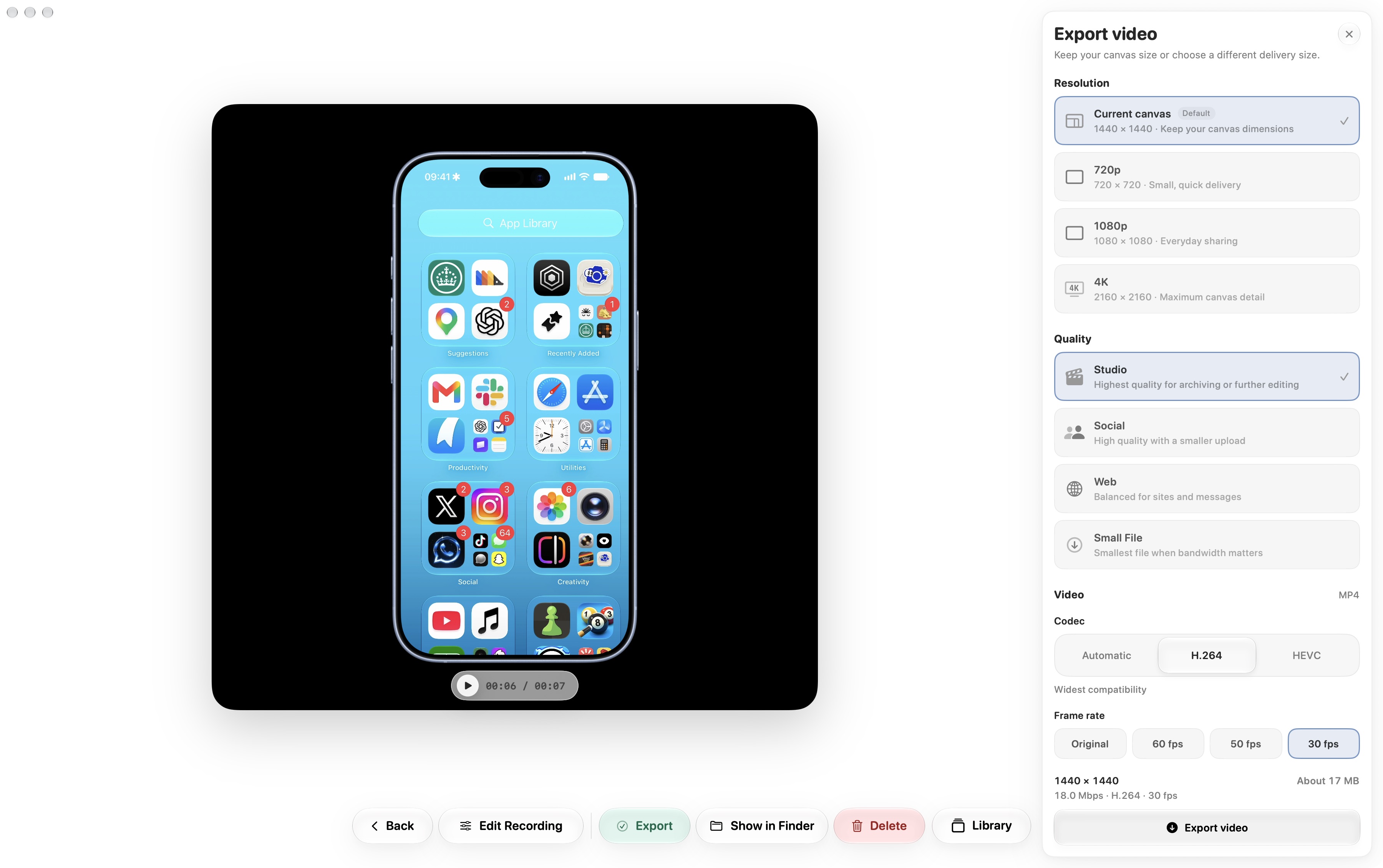
We exported a local MP4 from each app. The FrameOS check used H.264 at 30 fps; both export flows completed. This confirms the local-file workflow we tried, without establishing that either app is faster or produces a sharper result.
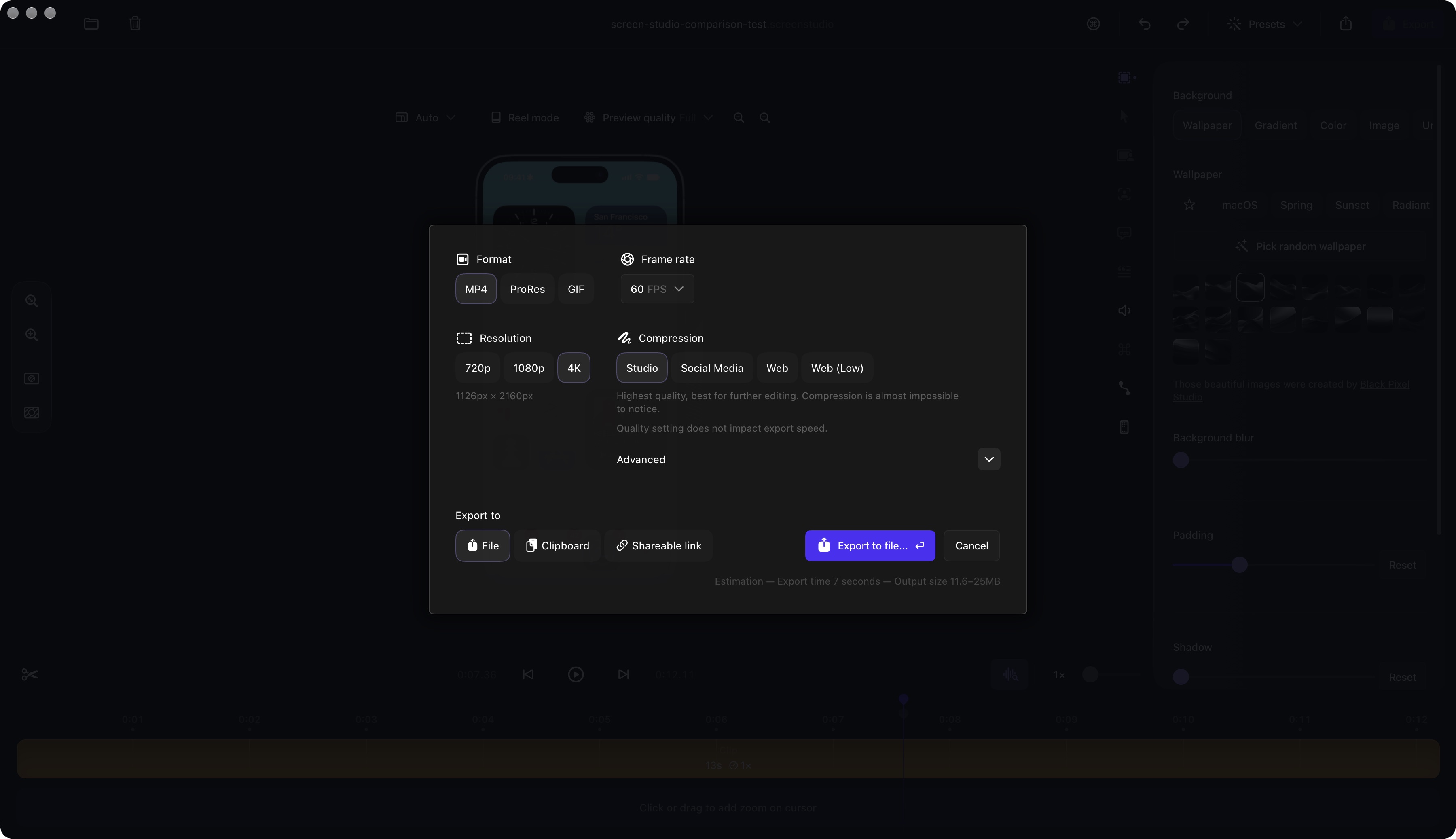
The Screen Studio export panel we inspected offered MP4, ProRes and GIF; we tested MP4. Screen Studio also documents optional hosted sharing links and project sharing. Its ordinary recording, editing and export workflow can stay local. FrameOS also works locally and documents additional outputs including transparent HEVC-with-alpha MOV. That transparent format can be useful for another editing project, but we did not test it here. Choose the output and sharing method your next destination needs.
Check caption requirements against your Mac
FrameOS documents English captions from microphone narration on compatible Macs running macOS 26 or later, using the available on-device model. Screen Studio documents local multilingual captions with Whisper, with Apple Speech as another option on macOS 26. These are different compatibility and language choices. We did not run a caption accuracy test, so we would try a short sample of your own narration before making that the deciding factor.
The pricing models are different
FrameOS is $39 USD once for one person on up to three of their own Macs, with pricing updated on 21 November 2026. Its pricing page lists automatic updates and lifetime support. As checked on 20 November 2026, Screen Studio’s advertised personal plans are $9 per month billed annually, or $29 per month billed monthly, with every feature included in each plan. Existing customers may have different licence terms.
A one-time purchase may suit someone making mobile launch assets occasionally. A subscription may fit someone who regularly uses Screen Studio’s broader recording and editing workflow. Compare the capabilities you will use as well as the billing model, and check both pricing pages before purchasing.
Which one fits your next project?
Choose Screen Studio when your work spans desktop and phone recordings, and you want that broader range of capture and editing tools together. Its iPhone and iPad support also makes it a valid choice for mobile demos.
Choose FrameOS when your main work is presenting mobile apps: connected phone recordings, Android or Simulator workflows, framed screenshots and store assets, with a one-time licence. Start with one real task, add the close-up or styling it needs, and inspect the exported result. That will tell you more about the fit than a long feature checklist.
References and thanks
- FrameOS features and supported recording sources
- FrameOS pricing, licence and export options
- Screen Studio recording, editing and local processing
- Screen Studio pricing
- Screen Studio: recording an iPhone or iPad and manual zooms
- Screen Studio: copy the current frame as an image
- Screen Studio caption engines and requirements
- Screen Studio video export formats
- Screen Studio optional sharing links