
Download FrameOS for macOS. If you have already purchased FrameOS, use this same download link. You do not need to buy it again or sign in to a website account.
FrameOS from tryframeos.com is a Mac app for recording and editing iPhone, iPad and Android screens. This guide covers that Mac app, which is separate from the Raspberry Pi smart-frame project with the same name.
Before you start
Have your Mac running macOS 14 or later, an internet connection and the licence key from your FrameOS purchase email ready. You also need access to the email address used for your purchase: that is where the activation code is sent.
Your licence key and the six-digit verification code are different. Keep both private.
1. Download and install the Mac app
- Download the latest FrameOS DMG.
- Open FrameOS.dmg from your Downloads folder.
- Drag FrameOS into Applications in the installer window.
- Open FrameOS from Applications. If macOS asks whether to open the downloaded app, choose Open.
The download installs FrameOS on your Mac. There is no FrameOS companion app to install on your iPhone, iPad or Android device.
2. Open licence activation
Click Activate License in the controls at the bottom of the FrameOS window. You can also choose FrameOS → License… from the Mac menu bar.
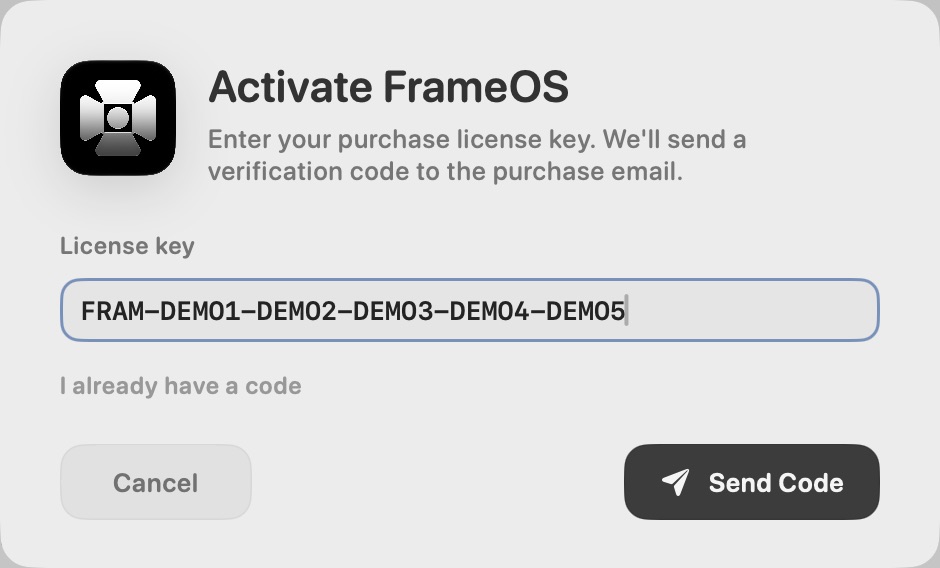
The Activate FrameOS window opens. You do not need to enter a website login or account password.
Screenshots use example details. Use the licence key and latest verification code from your own purchase emails. Select a screenshot to view it full size.
3. Enter your licence key and send the code
Paste your purchase licence key into License key, then click Send Code.
FrameOS emails a verification code to the address used to buy the licence. The next screen shows a masked version of that address so you can check which inbox to open.
4. Enter the email verification code
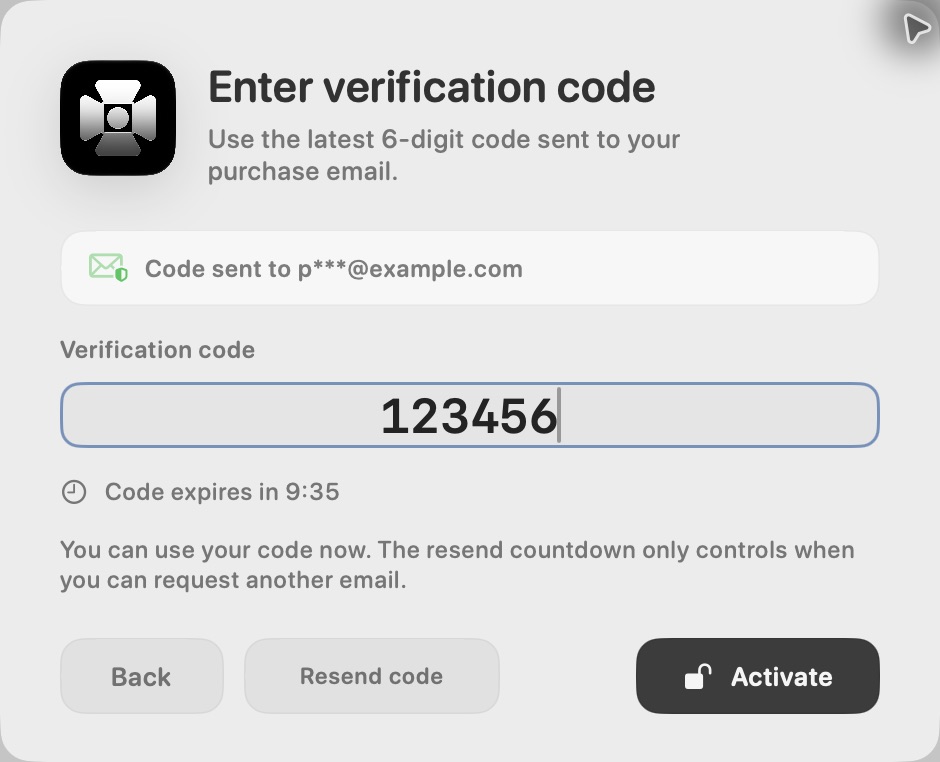
Open the newest FrameOS verification email. Enter its six-digit code in the Verification code field, then click Activate.
You can enter the code as soon as it arrives. Resend in… only controls when you can request another email; you do not need to wait for that countdown to finish before activating.
5. Check that this Mac is activated
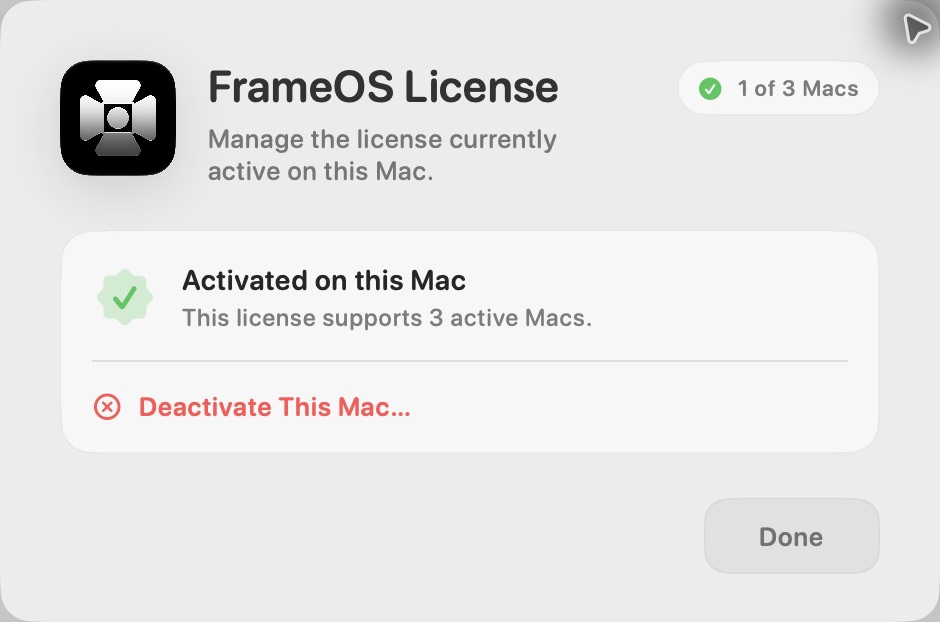
After activation succeeds, the activation window closes and FrameOS is ready to use.
To check it later, choose FrameOS → License…. The FrameOS License window shows Activated on this Mac and your Mac activation allowance.
Start your first recording
Connect your phone or tablet with a data-capable USB cable, keep it unlocked and select it in FrameOS. You can add your camera and microphone when you are ready to record.
If you get stuck
I have a receipt but cannot find my licence key
Check the inbox and spam or junk folder for the email sent after your FrameOS purchase. If you still cannot find the key, email FrameOS support from your purchase address, or include your receipt so we can locate the order. You can download the app using the link above while we help.
The verification email has not arrived
Check the masked purchase address shown in FrameOS, then check that inbox and its spam or junk folder. Keep FrameOS online. If necessary, wait until Resend code becomes available and request another email.
My code is invalid or has expired
Use the newest code and follow the expiry countdown in the app. Requesting a new code replaces the previous one. If the current code has expired, choose Resend code when it becomes available.
I cannot finish activating this Mac
Keep your Mac connected to the internet and try again. If FrameOS displays an activation-limit or licence error, contact support with the exact message and your purchase email or receipt. Do not post your full licence key or verification code in a public message.
I have not purchased FrameOS yet
View current pricing and licence details. Your purchase email includes the key you will use in the steps above.
We’re here to help.
Tell us which step stopped you and what you see. For purchase help, include your purchase email or receipt. Keep your full licence key and verification codes private.
Contact FrameOS support